GCP – Supercharge your Cloud SQL for MySQL write performance with new optimized writes
Tuning MySQL instances for write-intensive workloads is a persistent engineering challenge. Cloud SQL for MySQL Enterprise Plus edition now includes optimized writes, a set of automated features that adjust MySQL configurations based on real-time workload and infrastructure metrics. This reduces write latency and increases throughput without manual intervention.
All Enterprise Plus edition instances have this feature enabled by default. This post details the underlying optimizations and provides a reproducible benchmark to measure the performance improvements.
Inside Cloud SQL for MySQL optimized writes
The optimized writes feature includes five different optimizations that all automatically tune MySQL parameters, flags, and data handling, in order to optimize write performance based on instance and workload needs. Here’s a little more about how each component of optimized writes works:
| Feature | What it does |
| Adaptive purge | Cloud SQL dynamically adjusts innodb_purge_threads to prioritize user workloads over routine database maintenance operations. |
| Adaptive I/O limits |
Cloud SQL dynamically adjusts I/O parameters, specifically innodb_io_capacity and innodb_io_capacity_max. This adjustment occurs in direct response to fluctuations in workload demands and prevents I/O bottlenecks during traffic spikes. |
| Scalable sharded I/O |
Cloud SQL implements I/O sharding by distributing load across multiple mutexes to enhance I/O throughput and accommodate demanding workloads. |
| Faster REDO recovery |
Cloud SQL optimizes the handling of temporary data and the expedited flushing of dirty pages, consequently reducing recovery times and enabling the utilization of larger redo logs. |
| Adaptive buffer pool warmup |
Cloud SQL dynamically uses available disk I/O capacity to accelerate data cache warmup by scheduling page reads, resulting in faster data cache warmup post instance restart and a reduction in performance variance. |
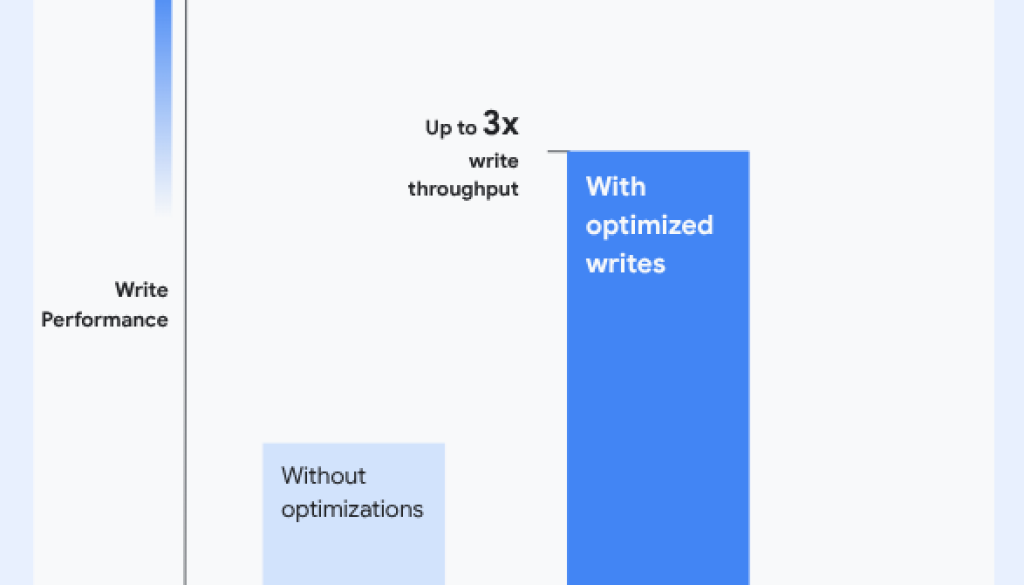
We’ve observed that with optimized writes, Cloud SQL for MySQL Enterprise Plus now delivers up to 3x better write throughput when compared to its Enterprise edition counterpart, while reducing latency significantly. These optimizations are most effective for write-intensive OLTP workloads and results can vary based on machine configurations. For workloads that are primarily read, Cloud SQL Enterprise Plus edition also provides an integrated SSD-backed data cache option, enabling up to 3x higher read throughput, as detailed in our initial launch blog.

Testing the optimized write performance improvement
Now that you’re aware of the exceptional write performance offered by Cloud SQL for MySQL Enterprise Plus edition, you might be curious about its potential impact within your own environment. Measuring this performance enhancement can be done with the sysbench benchmarking tool. You can follow the steps below and adjust specific machine configuration parameters to conduct testing tailored to your typical workloads.
Step 1: Create database instances
To help study the performance improvement, first create three different class of machines:
- Enterprise edition (ee)
- Enterprise Plus edition (ee+) without optimized writes
- Enterprise Plus edition (ee+) with optimized writes
- code_block
- <ListValue: [StructValue([(‘code’, ‘# will set some basic configuration variables to help us run things with higher scalability.rnrn#——————————————————rn# eerngcloud sql instances create ee –database-version=”MYSQL_8_0_37″ –availability-type=zonal –edition=ENTERPRISE –cpu=64 –memory=416GB –storage-size=3000 –storage-type=SSD –zone=”us-central1-c” –network=projects/${PROJECT}/global/networks/default –no-assign-ip –enable-google-private-path –no-enable-bin-log –database-flags=”max_prepared_stmt_count=1000000,innodb_adaptive_hash_index=off,innodb_flush_neighbors=0,table_open_cache=200000″rnrn#——————————————————rn# ee+ without optimized writesrn# Note: this configuration is not recommended and being shown only for comparisonrn# without optimized write larger redo log size will cause longer recovery time so switch back the redo log size to what it was originally (before optimized write was introduced).rngcloud sql instances create eeplusow0 –database-version=”MYSQL_8_0_37″ –availability-type=zonal –edition=ENTERPRISE_PLUS –tier=db-perf-optimized-N-64 –storage-size=3000 –storage-type=SSD –zone=”us-central1-c” –network=projects/${PROJECT}/global/networks/default –no-assign-ip –enable-google-private-path –no-enable-bin-log –database-flags=”max_prepared_stmt_count=1000000,innodb_adaptive_hash_index=off,innodb_flush_neighbors=0,table_open_cache=200000,innodb_cloudsql_optimized_write=off,innodb_log_file_size=1073741824″rnrn#——————————————————rn# ee+ with optimized writesrngcloud sql instances create eeplusow1 –database-version=”MYSQL_8_0_37″ –availability-type=zonal –edition=ENTERPRISE_PLUS –tier=db-perf-optimized-N-64 –storage-size=3000 –storage-type=SSD –zone=”us-central1-c” –network=projects/${PROJECT}/global/networks/default –no-assign-ip –enable-google-private-path –no-enable-bin-log –database-flags=”max_prepared_stmt_count=1000000,innodb_adaptive_hash_index=off,innodb_flush_neighbors=0,table_open_cache=200000″‘), (‘language’, ”), (‘caption’, <wagtail.rich_text.RichText object at 0x7f41ca0b9a60>)])]>
Step 2: Create client
Next, create a VM for the client instance. Client instances are placed in the same region but different zone.
- code_block
- <ListValue: [StructValue([(‘code’, ‘gcloud compute instances create c1 –zone=”us-central1-a” –boot-disk-size=10GB –create-disk=name=c1disk,size=100GB –machine-type=n2-custom-32-65536 –network=projects/${PROJECT}/global/networks/defaultrnrngcloud compute instances create c2 –zone=”us-central1-a” –boot-disk-size=10GB –create-disk=name=c2disk,size=100GB –machine-type=n2-custom-32-65536 –network=projects/${PROJECT}/global/networks/defaultrnrngcloud compute instances create c3 –zone=”us-central1-a” –boot-disk-size=10GB –create-disk=name=c3disk,size=100GB –machine-type=n2-custom-32-65536 –network=projects/${PROJECT}/global/networks/default’), (‘language’, ”), (‘caption’, <wagtail.rich_text.RichText object at 0x7f41c4331e80>)])]>
Then, log in to the client instances and execute following commands to install sysbench and mysqladmin:
- code_block
- <ListValue: [StructValue([(‘code’, ‘gcloud compute ssh <CLIENT_INSTANCE> –zone us-central1-a’), (‘language’, ”), (‘caption’, <wagtail.rich_text.RichText object at 0x7f41c4331580>)])]>
- code_block
- <ListValue: [StructValue([(‘code’, ‘sudo apt-get –purge remove sysbenchrnrn# check for latest repo here https://dev.mysql.com/downloads/repo/apt/rnwget https://repo.mysql.com//mysql-apt-config_0.8.36-1_all.debrnrn# command will prompt for selecting the mysql version. Feel free to select any version (8.4 default or change it to 8.0)rnsudo apt install ./mysql-apt-config_0.8.36-1_all.debrnsudo apt updaternsudo apt -y install make automake libtool pkg-config libaio-devrnsudo apt -y install libssl-dev zlib1g-devrnsudo apt -y install libmysqlclient-devrnsudo apt -y install mysql-community-client-corernrnsudo apt -y install gitrnmkdir ~/sysbenchrngit clone https://github.com/akopytov/sysbenchrncd sysbenchrn./autogen.shrn./configure –prefix=$HOME/sysbench/installedrnmake -j 16rnmake installrncd ~/rnrm mysql-apt-config_0.8.36-1_all.deb’), (‘language’, ”), (‘caption’, <wagtail.rich_text.RichText object at 0x7f41c6745f40>)])]>
Step 3: Run the benchmarking workload
Finally, you can run the sysbench write benchmark using the following script:
- code_block
- <ListValue: [StructValue([(‘code’, ‘mkdir opt-writerncd opt-writernrn# TODO: EDIT THE USER/HOST/PASSWORDrnrn#copy the script and replace the HOST IP address with the database instance ip.rnnohup ./write-workload.sh’), (‘language’, ”), (‘caption’, <wagtail.rich_text.RichText object at 0x7f41c7440160>)])]>
- code_block
- <ListValue: [StructValue([(‘code’, ‘#!/bin/bashrnrn# write-workload.shrnrnHOST=HOST_IP_ADDRESSrnsysbenchdir=”$HOME/sysbench/installed/”rnmysqlclidir=”/usr/bin”rnmysqluser=”root”rnmysqlpasswd=”pas$w0rd”rnrnrows=(“12000000”)rnrnfor (( k=1; k<=4; k+=1 ))rndorn for row in ${rows[@]};rn dorn #————rn # step-1: load datarn $mysqlclidir/mysql -u $mysqluser -h $HOST -e “drop database if exists x86; create database if not exists x86;”rn $sysbenchdir/bin/sysbench –threads=100 –mysql-host=$HOST –mysql-port=3306 –mysql-db=x86 –mysql-user=$mysqluser –mysql-password=$mysqlpasswd $sysbenchdir/share/sysbench/oltp_insert.lua –tables=100 –table-size=$row preparern $sysbenchdir/bin/sysbench –threads=128 –events=10000000 –time=0 –report-interval=10 –mysql-host=$HOST –mysql-port=3306 –mysql-db=x86 –mysql-user=$mysqluser –mysql-password=$mysqlpasswd $sysbenchdir/share/sysbench/oltp_update_index.lua –tables=100 –table-size=$row runrn sleep 300rnrn #————rn # step-2: start write benchmarking workloadrn for (( i=128; i<=512; i*=2 ))rn dorn $sysbenchdir/bin/sysbench –threads=$i –time=3600 –report-interval=10 –mysql-host=$HOST –mysql-port=3306 –mysql-db=x86 –mysql-user=$mysqluser –mysql-password=$mysqlpasswd $sysbenchdir/share/sysbench/oltp_write_only.lua –tables=100 –table-size=$row runrn sleep 120rn donern $mysqlclidir/mysql -u root -h $HOST -e “drop database if exists x86;”rn donerndone’), (‘language’, ”), (‘caption’, <wagtail.rich_text.RichText object at 0x7f41cacfbe20>)])]>
Upon completion, you will observe the throughput and latency results from the three Cloud SQL instances created in Step 1. These results should demonstrate the performance advantages of the Enterprise Plus edition and further improvements brought by optimized writes. Please note that performance outcomes can fluctuate and may vary based on specific machine configurations.
Ready to enable optimized writes?
All existing and newly created instances have optimized writes enabled by default, so upgrade your Cloud SQL instances to Enterprise Plus edition today to experience the performance improvement!
Read More for the details.