GCP – How to connect Looker to Gemini Enterprise in minutes, with MCP Toolbox and ADK
We can all agree that the quality of AI-driven answers relies on the consistency of the underlying data. But AI models, while powerful, lack business context out of the box. As more organizations ask questions of their data using natural language, it is increasingly important to unify business measures and dimensions, ensure consistency company-wide. If you want trustworthy AI, what you need is a semantic layer that acts as the single source of truth for business metrics.But how do you make that data accessible and actionable for your end users? Building off the recent introduction of Looker’s Model Context Protocol (MCP) server, in this blog we take you through the process of creating an Agent Development Kit (ADK) agent that is connected to Looker via the MCP Toolbox for Databases and exposing it within Gemini Enterprise. Let’s get started. Step 1 – Set up Looker Integration in MCP Toolbox
MCP Toolbox for Databases is a central open-source server that hosts and manages toolsets, enabling agentic applications to leverage Looker’s capabilities without working directly with the platform. Instead of managing tool logic and authentication themselves, agents act as MCP clients and request tools from the Toolbox. The MCP Toolbox handles all the underlying complexities, including secure connections to Looker, authentication and query execution.
The MCP Toolbox for Databases natively supports Looker’s pre-built toolset. To access these tools, follow the below steps:
Connect to Cloud Shell. Check that you’re already authenticated, and that the project is set to your project ID using the following command:
- code_block
- <ListValue: [StructValue([(‘code’, ‘gcloud auth list’), (‘language’, ”), (‘caption’, <wagtail.rich_text.RichText object at 0x7fa5baae0160>)])]>
Run the following command in Cloud Shell to confirm that the gcloud command knows about your project:
- code_block
- <ListValue: [StructValue([(‘code’, ‘gcloud config list project’), (‘language’, ”), (‘caption’, <wagtail.rich_text.RichText object at 0x7fa5baae0640>)])]>
Create a folder named mcp-toolbox:
- code_block
- <ListValue: [StructValue([(‘code’, ‘mkdir mcp-toolbox’), (‘language’, ”), (‘caption’, <wagtail.rich_text.RichText object at 0x7fa5baae0340>)])]>
Go to the mcp-toolbox folder via the command shown below:
- code_block
- <ListValue: [StructValue([(‘code’, ‘cd mcp-toolbox’), (‘language’, ”), (‘caption’, <wagtail.rich_text.RichText object at 0x7fa5baae08b0>)])]>
Install the binary version of the MCP Toolbox for Databases via the script given below. This command is for Linux; if you run on Macintosh or Windows, ensure that you download the correct binary. Check out the releases page for your Operation System and Architecture and download the correct binary.
- code_block
- <ListValue: [StructValue([(‘code’, ‘export OS=”linux/amd64″ # one of linux/amd64, darwin/arm64, darwin/amd64, or windows/amd64rncurl -O https://storage.googleapis.com/genai-toolbox/v0.12.0/$OS/toolboxrnchmod +x toolbox’), (‘language’, ”), (‘caption’, <wagtail.rich_text.RichText object at 0x7fa5baae0a30>)])]>
Deploy Toolbox to Cloud Run
Next, you’ll need to run MCP Toolbox. The simplest way to do that is on Cloud Run, Google Cloud’s fully managed container application platform. Here’s how:
- code_block
- <ListValue: [StructValue([(‘code’, ‘export PROJECT_ID=”YOUR_GOOGLE_CLOUD_PROJECT_ID”‘), (‘language’, ”), (‘caption’, <wagtail.rich_text.RichText object at 0x7fa5baae0d30>)])]>
Enable relevant APIs if needed:
- code_block
- <ListValue: [StructValue([(‘code’, ‘gcloud services enable run.googleapis.com \rn cloudbuild.googleapis.com \rn artifactregistry.googleapis.com \rn iam.googleapis.com \rn secretmanager.googleapis.com’), (‘language’, ”), (‘caption’, <wagtail.rich_text.RichText object at 0x7fa5baae0b50>)])]>
Create a service account and assign necessary roles:
- code_block
- <ListValue: [StructValue([(‘code’, ‘gcloud iam service-accounts create toolbox-identityrnrngcloud projects add-iam-policy-binding $PROJECT_ID \rn –member serviceAccount:toolbox-identity@$PROJECT_ID.iam.gserviceaccount.com \rn –role roles/secretmanager.secretAccessorrnrngcloud projects add-iam-policy-binding $PROJECT_ID \rn –member serviceAccount:toolbox-identity@$PROJECT_ID.iam.gserviceaccount.com \rn –role roles/cloudsql.client’), (‘language’, ”), (‘caption’, <wagtail.rich_text.RichText object at 0x7fa5baae0970>)])]>
For information on getting your client id and secret, read the documentation.
Create a deploy.env file:
- code_block
- <ListValue: [StructValue([(‘code’, ‘LOOKER_BASE_URL=”YOUR_LOOKER_URL”rnLOOKER_CLIENT_ID=”YOUR_CLIENT_ID”rnLOOKER_CLIENT_SECRET=”YOUR_CLIENT_SECRET”‘), (‘language’, ”), (‘caption’, <wagtail.rich_text.RichText object at 0x7fa5baae0eb0>)])]>
Export the toolbox config into an image variable:
- code_block
- <ListValue: [StructValue([(‘code’, ‘export IMAGE=us-central1-docker.pkg.dev/database-toolbox/toolbox/toolbox:latest’), (‘language’, ”), (‘caption’, <wagtail.rich_text.RichText object at 0x7fa5baae05e0>)])]>
Deploy MCP Toolbox to Cloud Run:
- code_block
- <ListValue: [StructValue([(‘code’, ‘gcloud run deploy toolbox \rn –image $IMAGE \rn –env-vars-file=deploy.env \rn –service-account toolbox-identity \rn –region us-central1 \rn –args=”–prebuilt=looker”,”–address=0.0.0.0″,”–port=8080″‘), (‘language’, ”), (‘caption’, <wagtail.rich_text.RichText object at 0x7fa5baae03a0>)])]>
The Cloud Run will ask if you want Unauthenticated, select No.Allow Unauthenticated: N
Step 2: Deploy ADK Agent to Agent Engine
Next, you need to configure Agent Development Kit (ADK), a flexible and modular framework for developing and deploying AI agents. ADK was designed to make agent development feel more like software development, to make it easier for developers to create, deploy, and orchestrate agentic architectures that range from simple tasks to complex workflows. And while ADK is optimized for Gemini and the Google ecosystem, it’s also model-agnostic, deployment-agnostic, and is built for compatibility with other frameworks.
Vertex AI Agent Engine, a part of the Vertex AI Platform, is a set of services that enables developers to deploy, manage, and scale AI agents in production. Agent Engine handles the infrastructure to scale agents in production so you can focus on creating applications.
Open a new terminal tab in Cloud Shell and create a folder named my-agents as follows. You also need to navigate to the my-agents folder.
- code_block
- <ListValue: [StructValue([(‘code’, ‘mkdir my-agentsrncd my-agents’), (‘language’, ”), (‘caption’, <wagtail.rich_text.RichText object at 0x7fa5bdf82130>)])]>
Now, create a virtual Python environment using venv:
- code_block
- <ListValue: [StructValue([(‘code’, ‘python -m venv .venv’), (‘language’, ”), (‘caption’, <wagtail.rich_text.RichText object at 0x7fa5bd272520>)])]>
Activate the virtual environment:
- code_block
- <ListValue: [StructValue([(‘code’, ‘source .venv/bin/activate’), (‘language’, ”), (‘caption’, <wagtail.rich_text.RichText object at 0x7fa5bd272040>)])]>
Install the ADK and the MCP Toolbox for Databases packages along with langchain dependency:
- code_block
- <ListValue: [StructValue([(‘code’, ‘pip install google-adk toolbox-core’), (‘language’, ”), (‘caption’, <wagtail.rich_text.RichText object at 0x7fa5bd272310>)])]>
Creating your first Agent Application
Now you’re ready to use adk to create a scaffolding, including folders, environment and basic files, for our Looker Agent Application via the adk create command with an app name looker_app:
- code_block
- <ListValue: [StructValue([(‘code’, ‘adk create looker_app’), (‘language’, ”), (‘caption’, <wagtail.rich_text.RichText object at 0x7fa5bd2725e0>)])]>
Follow the steps and select the following:
-
Gemini model for choosing a model for the root agent
-
Vertex AI for the backend
-
Your default Google Project Id and region
- code_block
- <ListValue: [StructValue([(‘code’, ‘Choose a model for the root agent:rn1. gemini-2.5-flash-001rn2. Other models (fill later)rnChoose model (1, 2): 1rnrnrn1. Google AIrn2. Vertex AIrnChoose a backend (1, 2): 2rnrnEnter Google Cloud project ID [your_current_project_id]:rnEnter Google Cloud region [us-central1]:rnrnAgent created in /home/romin/looker-app:rn- .envrn- __init__.pyrn- agent.py’), (‘language’, ”), (‘caption’, <wagtail.rich_text.RichText object at 0x7fa5bd2720a0>)])]>
Observe the folder in which a default template and required files for the Agent have been created.
First up is the .env file:
- code_block
- <ListValue: [StructValue([(‘code’, ‘GOOGLE_GENAI_USE_VERTEXAI=1rnGOOGLE_CLOUD_PROJECT=YOUR_GOOGLE_PROJECT_IDrnGOOGLE_CLOUD_LOCATION=YOUR_GOOGLE_PROJECT_REGION’), (‘language’, ”), (‘caption’, <wagtail.rich_text.RichText object at 0x7fa5bd272220>)])]>
The values indicate that you will be using Gemini via Vertex AI along with the respective values for the Google Cloud Project Id and location.
Then you have the __init__.py file that marks the folder as a module and has a single statement that imports the agent from the agent.py file:
- code_block
- <ListValue: [StructValue([(‘code’, ‘from . import agent’), (‘language’, ”), (‘caption’, <wagtail.rich_text.RichText object at 0x7fa5bd2729d0>)])]>
Finally, take a look at the agent.py file. The contents can be edited to similar to the example below:
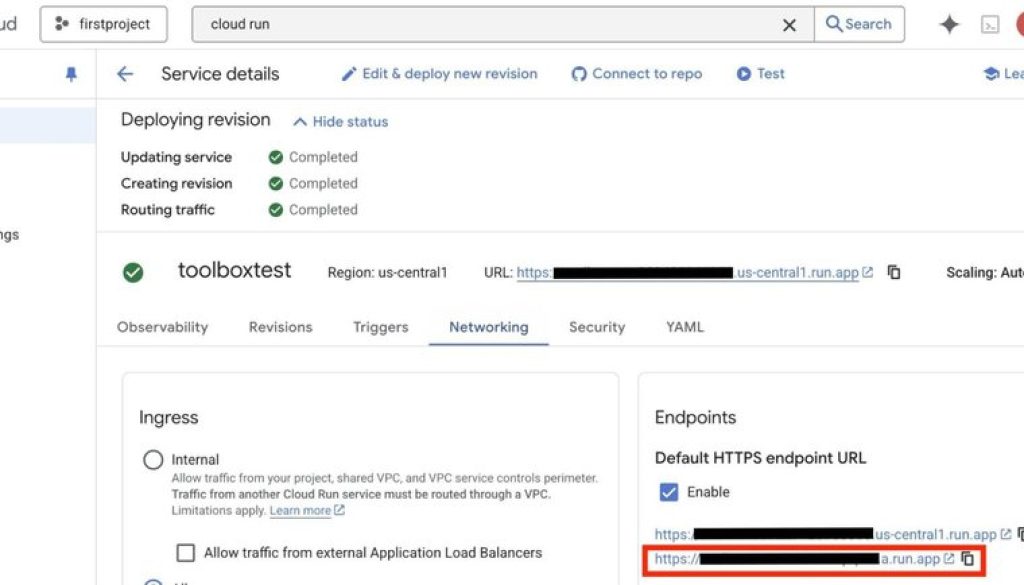
Insert the Cloud Run URL highlighted here (. not the one with the project number in the url).

- code_block
- <ListValue: [StructValue([(‘code’, ‘import osrnfrom google.adk.agents import LlmAgentrnfrom google.adk.planners.built_in_planner import BuiltInPlannerrnfrom google.adk.tools.mcp_tool.mcp_toolset import MCPToolsetrnfrom google.adk.tools.mcp_tool.mcp_session_manager import SseConnectionParams, StreamableHTTPConnectionParamsrnfrom google.genai.types import ThinkingConfigrnfrom google.auth import compute_enginernimport google.auth.transport.requestsrnimport google.oauth2.id_tokenrnrn# Replace this URL with the correct endpoint for your MCP server.rnMCP_SERVER_URL = “YOUR_CLOUD_RUN_URL/mcp”rnif not MCP_SERVER_URL:rn raise ValueError(“The MCP_SERVER_URL is not set.”)rndef get_id_token():rn “””Get an ID token to authenticate with the MCP server.”””rn target_url = MCP_SERVER_URLrn audience = target_url.split(‘/mcp’)[0]rn auth_req = google.auth.transport.requests.Request()rn id_token = google.oauth2.id_token.fetch_id_token(auth_req, audience)rn # Get the ID token.rn return id_tokenrnrnrnroot_agent = LlmAgent(rn model=’gemini-2.5-flash’,rn name=’looker_agent’,rn description=’Agent to answer questions about Looker data.’,rn instruction=(rn ‘You are a helpful agent who can answer user questions about Looker data the user has access to. Use the tools to answer the question. If you are unsure on what model to use, try defaulting to thelook and if you are also unsure on the explore, try order_items if using thelook model’rn ),rnplanner=BuiltInPlanner(rnthinking_config=ThinkingConfig(include_thoughts=False, thinking_budget=0)rn),rntools=[rnMCPToolset(rnconnection_params=StreamableHTTPConnectionParams(rnurl=MCP_SERVER_URL,rnheaders={rn”Authorization”: f”Bearer {get_id_token()}”,rn}rn),rnerrlog=None,rn# Load all tools from the MCP server at the given URLrntool_filter=None,rn)rn],rn)’), (‘language’, ”), (‘caption’, <wagtail.rich_text.RichText object at 0x7fa5bd272940>)])]>
Create a Cloud Storage bucket if necessary:
- code_block
- <ListValue: [StructValue([(‘code’, ‘gcloud storage buckets create gs://BUCKET_NAME –location=BUCKET_LOCATION’), (‘language’, ”), (‘caption’, <wagtail.rich_text.RichText object at 0x7fa5bd2728e0>)])]>
Ensure you are in the my-agents directory. Update the BUCKET_NAME with the Cloud Storage bucket you want to use:
- code_block
- <ListValue: [StructValue([(‘code’, ‘export PROJECT_ID=”YOUR_GOOGLE_CLOUD_PROJECT_ID”rnadk deploy agent_engine –project $PROJECT_ID –region us-central1 –staging_bucket gs://BUCKET_NAME –display_name “looker-agent1″ looker_app’), (‘language’, ”), (‘caption’, <wagtail.rich_text.RichText object at 0x7fa5bd272d60>)])]>
NOTE: Ensure you grant the Cloud Run Invoker role to the default Agent Engine Service Account (i.e., service-PROJECT_NUMBER@gcp-sa-aiplatform-re.iam.gserviceaccount.com)
Step 3: Connect to Gemini Enterprise
Now it’s time to create a Gemini Enterprise app (instructions here).
Run the below command with the GCP Project Number, Reasoning Engine resource name output from the ‘deploy agent_engine’ command above, and your Gemini Enterprise Agent ID from the Gemini Enterprise Apps interface:
- code_block
- <ListValue: [StructValue([(‘code’, ‘export PROJECT_NUMBER=”YOUR_PROJECT_NUMBER”rnexport REASONING_ENGINE=”projects/XXXXX/locations/us-central1/reasoningEngines/XXXXX”rnexport DISPLAY_NAME=”Looker Agent”rnexport DESCRIPTION=”Looker’s MCP Capability.”rnexport TOOL_DESCRIPTION=”Looker’s Query Engine is used to answer Ecommerce questions.”rnexport AS_APP=”YOUR_GEMENI_ENTERPRISE_AGENT_ID”rnrncurl -X POST \rn -H “Authorization: Bearer $(gcloud auth print-access-token)” \rn -H “Content-Type: application/json” \rn -H “X-Goog-User-Project: ${PROJECT_NUMBER}” \rnhttps://discoveryengine.googleapis.com/v1alpha/projects/${PROJECT_NUMBER}/locations/global/collections/default_collection/engines/${AS_APP}/assistants/default_assistant/agents \rn -d ‘{rn “displayName”: “‘”${DISPLAY_NAME}”‘”,rn “description”: “‘”${DESCRIPTION}”‘”,rn “adk_agent_definition”: {rn “tool_settings”: {rn “tool_description”: “‘”${TOOL_DESCRIPTION}”‘”rn },rn “provisioned_reasoning_engine”: {rn “reasoning_engine”:rn “‘”${REASONING_ENGINE}”‘”rn }rn }rn }”), (‘language’, ”), (‘caption’, <wagtail.rich_text.RichText object at 0x7fa5bd272a90>)])]>
Your Looker data will now be available within your Gemini Enterprise app.If you don’t have access to this feature, contact your Google Cloud account team.
Querying business data made easier
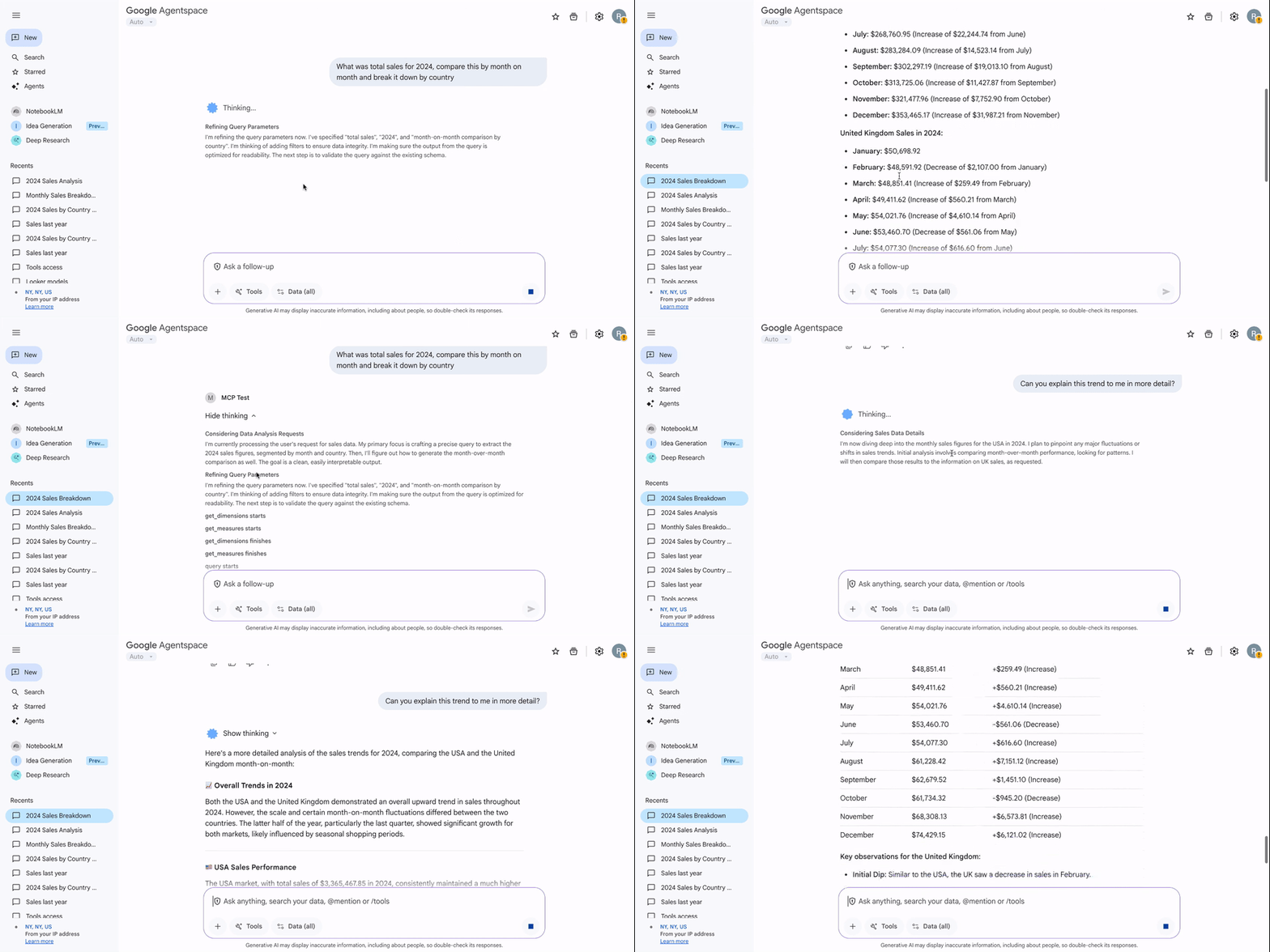
Connecting Looker’s semantic layer to Vertex AI Agent services by way of the ADK and MCP Toolbox is a big win for data accessibility. By exposing your trusted Looker models and Explores in Gemini Enterprise, you empower end-users to query complex business data using natural language. This integration closes the gap between data insights and immediate action, ensuring that your organization’s semantic layer is not just a source of passive reports, but an active, conversational, and decision-driving asset.
To get started, connect to the MCP Toolbox for Databases on GitHub and set up Looker integration.
Read More for the details.