GCP – Connect your enterprise data to Google’s new Antigravity IDE
The AI state of the art is shifting rapidly from simple chat interfaces to autonomous agents capable of planning, executing, and refining complex workflows. In this new landscape, the ability to ground these intelligent agents in your enterprise data is key to unlocking true business value. Google Cloud is at the forefront of this shift, empowering you to build robust, data-driven applications quickly and accurately.
Last month, Google announced Antigravity, an AI-first integrated development environment (IDE). And now, you can now give the AI agents you build in Antigravity direct, secure access to the trusted data infrastructure that powers your organization, turning abstract reasoning into concrete, data-aware action. With Model Context Protocol (MCP) servers powered by MCP Toolbox for Databases now available within Antigravity, you can securely connect your AI agents to services like AlloyDB for PostgreSQL, BigQuery, Spanner, Cloud SQL, Looker and others within Google’s Data Cloud, all within your development workflow.
Why use MCP in Antigravity?
We designed Antigravity to keep you in the flow, but the power of an AI agent is limited by what it “knows.” To build truly useful applications, your agent needs to understand your data. MCP acts as the universal translator. You can think of it like a USB-C port for AI. It allows the LLMs in your IDE to plug into your data sources in a standardized way. By integrating pre-built MCP servers directly into Antigravity, you don’t need to perform any manual configuration. Your agents can now converse directly with your databases, helping you build and iterate faster without ever leaving the IDE.
Getting started with MCP servers
In Antigravity, connecting an agent to your data is a UI-driven experience, eliminating the challenges we’ve all faced when wrestling with complex configuration files just to get a database connection running. Here’s how to get up and running.
1. Discover and launch
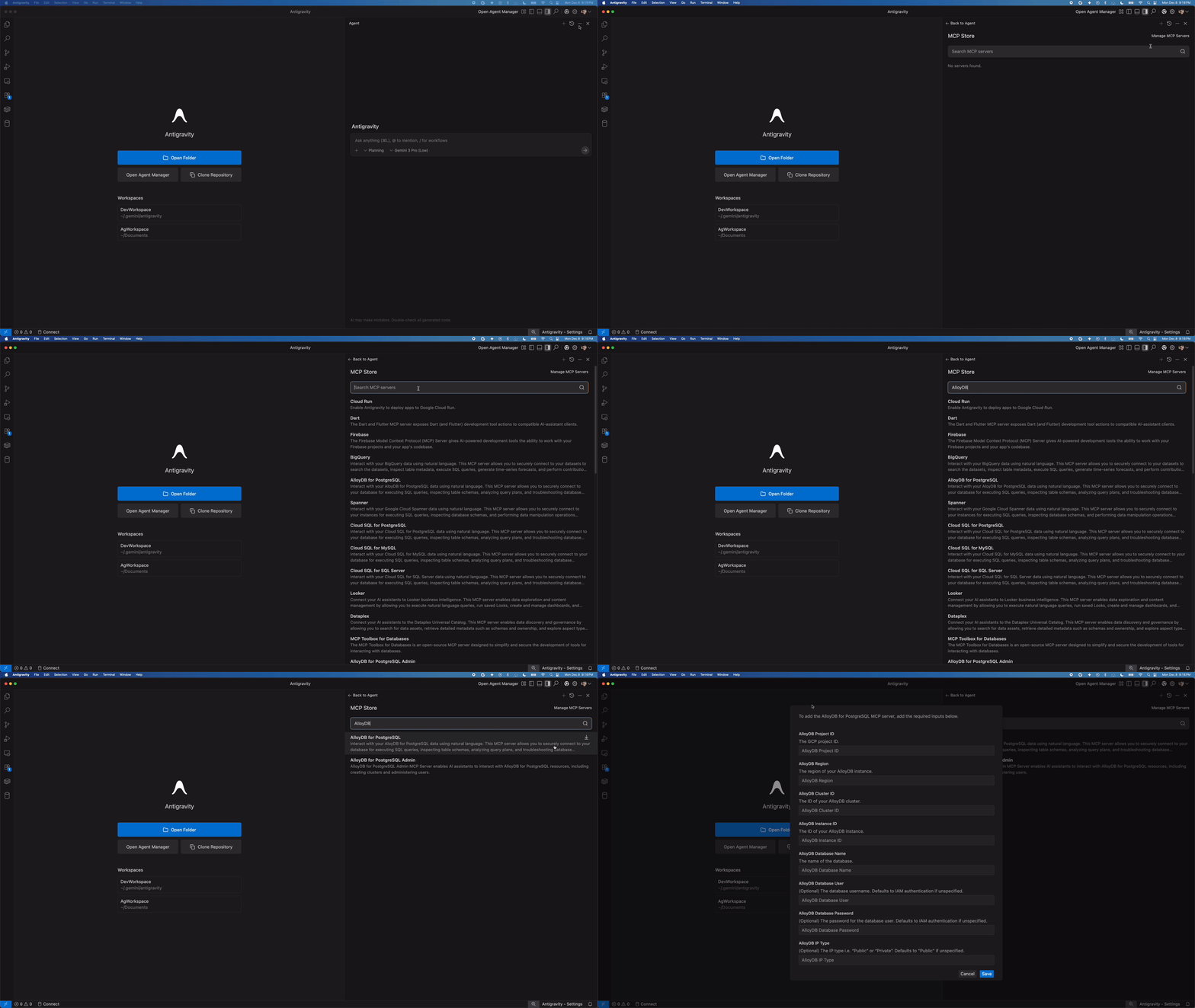
You can find MCP servers for Google Cloud in the Antigravity MCP Store. Search for the service you need, such as “AlloyDB for PostgreSQL” or “BigQuery,” and click on Install to start the setup process.
Launching the Antigravity MCP store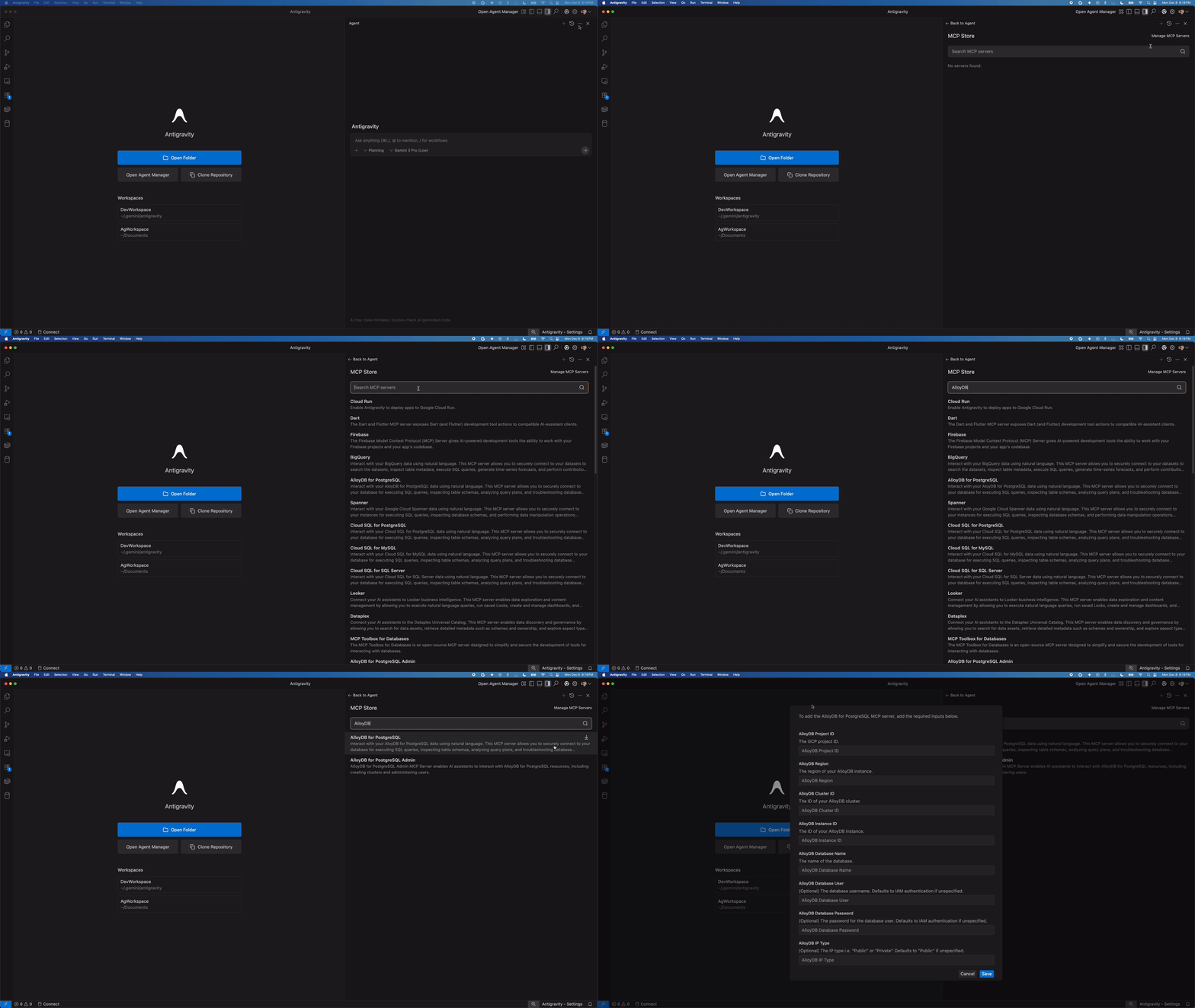
2. Configure your connection
Antigravity presents a form where you can add your service details such as Project ID and region. You can also enter your password or have Antigravity use your Identity and Access Management (IAM) credentials for additional security. These are stored securely, so your agent can access the tools it needs without exposing raw secrets in your chat window.
Installing the AlloyDB for PostgreSQL MCP Server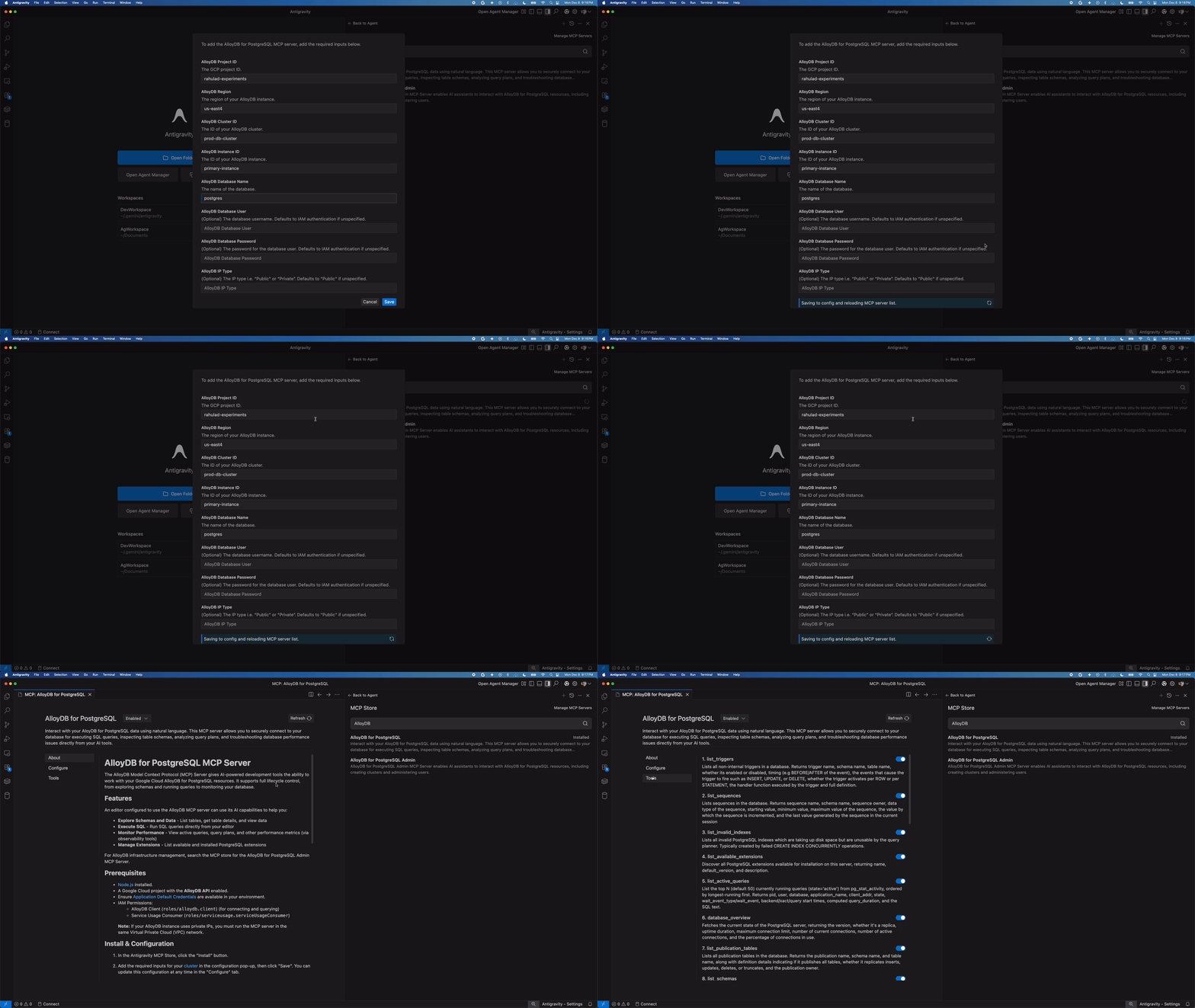
See your agents in action
Once connected to Antigravity, your agent gains a suite of “tools” (executable functions) that it can use to assist you, and help transform your development and observability experience across different services. Let’s take a look at a couple of common scenarios.
Streamlining database tasks with AlloyDB for PostgreSQL
When building against a relational database like PostgreSQL, you may spend time switching between your IDE and a SQL client to check schema names or test queries. With the AlloyDB MCP server, your agent handles that context and gains the ability to perform database administration and generate high-quality SQL code you can include in your apps — all within the Antigravity interface.
For example:
- Schema exploration: The agent can use
list_tablesandget_table_schemato read your database structure and explain relationships to you instantly. - Query development: Ask the agent to “Write a query to find the top 10 users,” and it can use
execute_sqlto run it and verify the results immediately. - Optimization: Before you commit code, use the agent to run
get_query_planto ensure your logic is performant.
Antigravity agent using the MCP tools
Unlocking analytics with BigQuery
For data-heavy applications, your agent can act as a helpful data analyst. Leveraging the BigQuery MCP server, it can, for example:
-
Forecast: Use
forecastto predict future trends based on historical data. -
Search the catalog: Use
search_catalogto discover and manage data assets. -
Augmented analytics: Use
analyze_contributionto understand the impact of different factors on data metrics.
Building on truth with Looker
Looker acts as your single source of truth for business metrics. Looker’s MCP server allows your agent to bridge the gap between code and business logic, for example:
-
Ensuring metric consistency: No more guessing whether a field is named
total_revenueorrevenue_total. Useget_exploresandget_dimensionsto ask your agent, “What is the correct measure for Net Retention?” and receive the precise field reference from the semantic model. -
Instantly validating logic: Don’t wait to deploy a dashboard to test a theory. Use
run_queryto execute ad-hoc tests against the Looker model directly in your IDE, so that your application logic matches the live data. -
Auditing reports: Use
run_lookto pull results from existing saved reports, allowing you to verify that your application’s output aligns with official business reporting.
Build with data in Antigravity
By integrating Google’s Data Cloud MCP servers into Antigravity, it’s easier than ever to use AI to discover insights and develop new applications. Now, with access to a wide variety of data sources that run your business, get ready to take the leap from simply talking to your code, to creating new experiences for your users.
To get started, check out the following resources:
-
Documentation: Connecting to AlloyDB using MCP
- GitHub: MCP Toolbox for Databases
Read More for the details.