GCP – Gain Cross-Cloud Network traffic insights with VPC Flow Logs and Flow Analyzer
Gaining visibility into your network traffic is crucial, particularly with hybrid environments encompassing both on-premises and cross-cloud infrastructure. VPC Flow Logs have long been a staple to obtain detailed records of network traffic to, from, and within your Google Cloud subnets. But with the rise of more complex network topologies enabled by the Cross-Cloud Network, we knew we needed to expand VPC Flow Logs to give you a more complete picture.
That’s why we’re excited to share that you can now enable VPC Flow Logs directly on your Cloud VPN tunnels and VLAN attachments for Cloud Interconnect and Cross-Cloud Interconnect. This enhancement provides comprehensive monitoring of critical network traffic moving between your on-prem infrastructure, cross-cloud resources, and Google Cloud. With this new capability, you can:
-
Gain granular insights: Log network flows passing through Cloud Interconnect and Cloud VPN with 5-tuple granularity (source/destination IP, source/destination port, protocol).
-
Optimize performance: Quickly identify “elephant flows” (high-bandwidth flows) that might be congesting a specific VPN tunnel or VLAN attachment, enabling you to better plan and manage capacity.
-
Audit Shared VPC usage: In Shared VPC environments, identify which service projects are consuming the most hybrid bandwidth.
-
Map utilization to flows: Understand exactly how your hybrid connections are being utilized by mapping high-level bandwidth graphs to specific application flows.
-
Diagnose connectivity issues: When an on-prem/cross-cloud application can’t reach a Google Cloud resource, use logs to check if the traffic is arriving at the Google Cloud gateway (VLAN attachment or VPN tunnel).
-
Finetune your application awareness on Cloud Interconnect policy configurations: Monitor and verify that your applications are marking differentiated services field codepoints (DSCP) correctly.
To provide more context to these flows, we’ve also added “gateway” annotations to VPC Flow Logs. Think of a gateway as the entry or exit point for traffic traveling between your Google Cloud VPC and an external network.
When you inspect a flow log of Cross-Cloud Network traffic, you’ll now see two key new fields:
-
reporter: This field tells you the direction of the traffic, relative to the gateway.
-
SRC_GATEWAY: The traffic was observed entering Google Cloud through Cloud Interconnect or Cloud VPN (e.g., on-prem to Google Cloud).
-
DEST_GATEWAY: The traffic was observed exiting Google Cloud through Cloud Interconnect or Cloud VPN (e.g., Google Cloud to on-prem).
-
gateway object: This JSON payload provides the full context of the gateway itself, including its name, type (VPN_TUNNEL or INTERCONNECT_ATTACHMENT), project_id, and location.
Analyze your logs with Flow Analyzer
To help you analyze your flow logs without writing-complex SQL queries, we’ve also integrated the new gateway annotations directly into Flow Analyzer, a native tool for performing deep network traffic analysis on your VPC Flow Logs stored in Cloud Logging at no additional cost. Using Flow Analyzer, you can:
-
Quickly identify top talkers in your network with 5-tuple granularity.
-
Run Connectivity Tests in-context to understand how your configurations (ie. firewall policies) impact traffic flowing through your network.
-
Use Gemini Cloud Assist to construct natural language queries.
-
Analyze and compare current network flows with historical data (e.g., last hour, day, or week).
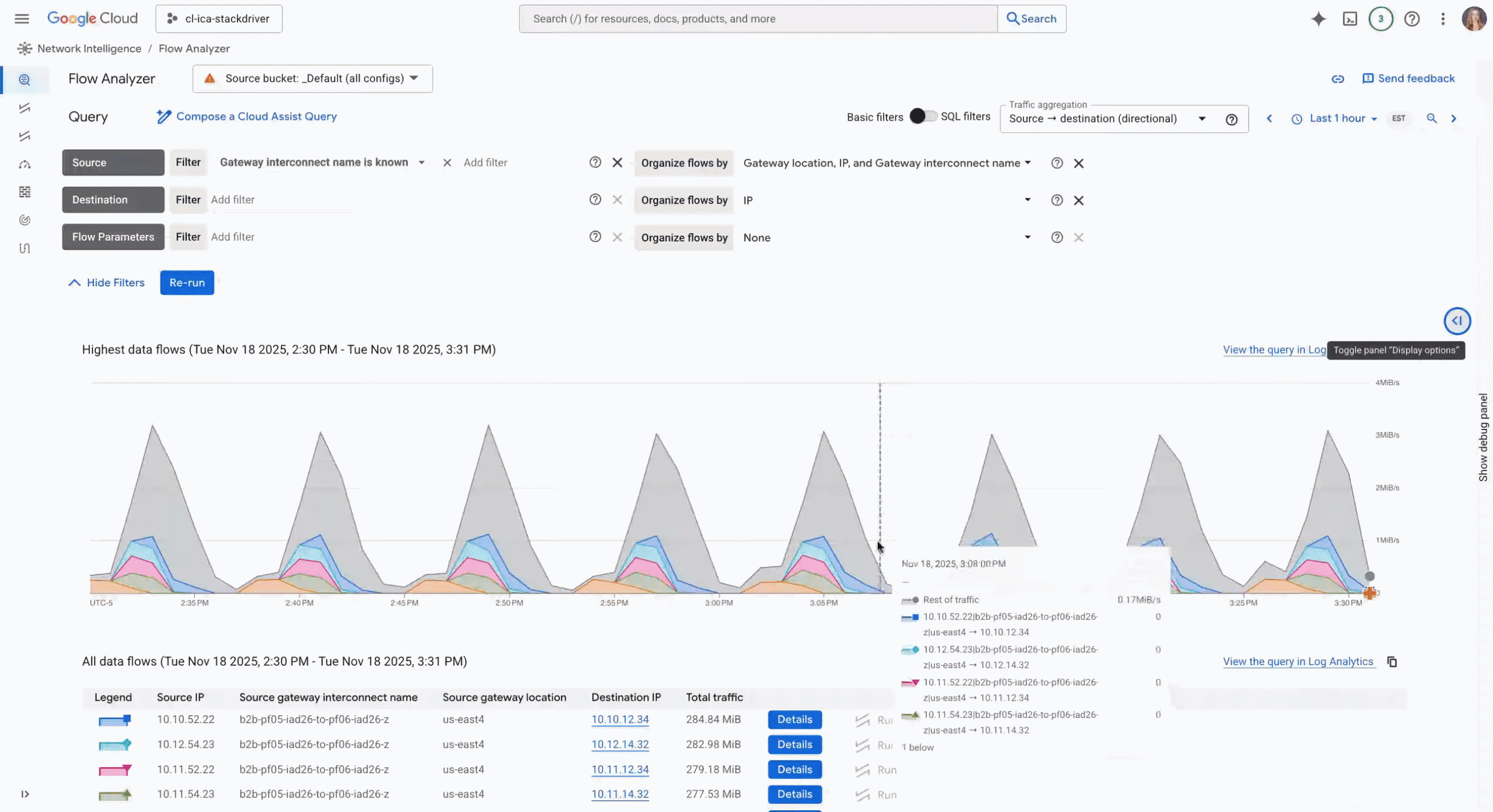
Flow Analyzer providing Cloud Interconnect traffic insights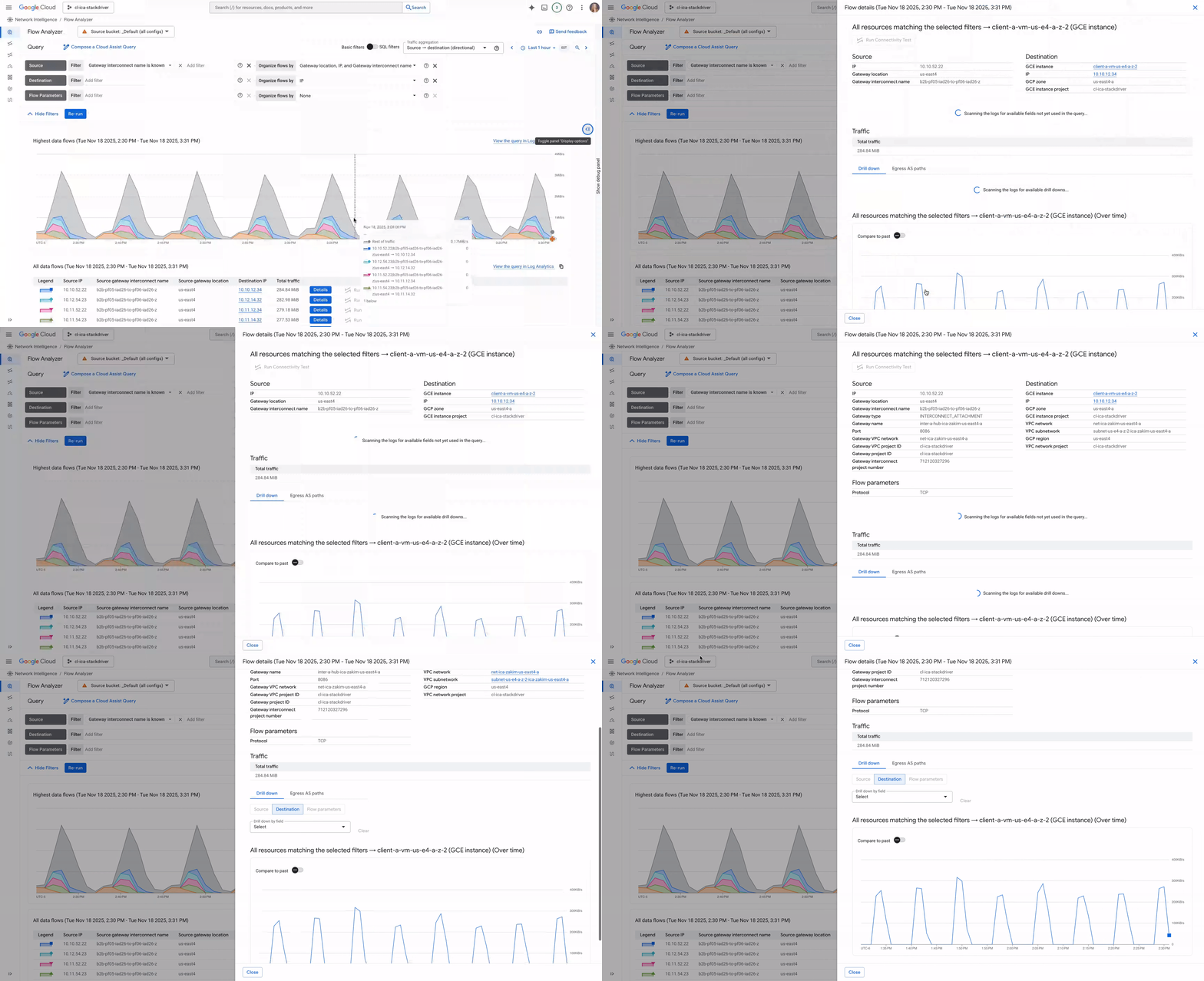
Achieve essential visibility across the Cross-Cloud Network
If you’re running a Cross-Cloud Network, enabling VPC Flow Logs on your VLAN attachments and VPN tunnels provides the essential telemetry you need to manage, secure, and scale your interconnected networks. You can enable this feature on your new and existing VLAN attachments and VPN tunnels using CLI, API, Terraform, or directly from the Google Cloud console.
To learn more, check out the VPC Flow Logs documentation or get started with Flow Analyzer.
Read More for the details.